Backup monitoring for MSPs
Sergward watches the backups your customers already run. The agent checks how old the newest file in a backup folder is and whether it is empty or corrupt, what Windows Server Backup says about its last run, and every Proxmox guest's last backup. When one fails or gets too old, you get an email. Free during the beta.
Free during the beta. Leave your details and we write to give you access.
- 26 h
- default age before a backup counts as too old
- 8 MiB
- read from each copy to check it opens, then discarded
- 3
- sources: backup folders, Windows Server Backup, Proxmox
What Sergward checks
It does not run the backups. It looks at what they leave behind and says whether it is there, recent and usable.
- Backup folders
- The newest file that matches the path (wildcards allowed), its age and size, and how many copies there are. Database dumps, SQL Server .bak files, tar archives, restic, or the folder any other tool writes to.
- /var/backups/postgres/*.dump · 9 h ago
- Empty, failed or corrupt
- A copy that is empty or has a .fail file next to it counts as failed. The agent also opens each copy, reads up to 8 MiB to check that it is not truncated, and discards what it read.
- sql-nightly.bak · does not open
- Windows Server Backup
- What Windows itself reports about its last run, not the date of a file.
- srv-files-01 · last run ok · 11 h ago
- Proxmox
- Each guest's last good vzdump backup and its size, whether the last attempt failed, and the guests no backup job includes.
- vm 104 · last good 23 h ago · 18.4 GB
- A path that cannot be read
- If the folder does not exist or the agent cannot read it, the job says so, instead of claiming the backup never ran.
- D:\Backups\SQL · unreadable path
- A host that stopped reporting
- Its backups show as unknown: the last known age says nothing about now.
- srv-files-02 · unknown · host not reporting
Alerts when a backup fails or stops
A backup that did not run makes no noise until the day you need it. These are the alerts and the text they arrive with.
Alerts go out by email. A backup that is not worth watching, such as a test VM, can be taken out of backup watching so it stops raising alerts.
- CriticalBackup ageThe newest copy is older than the limit: 26 hours by default, per tag or per machine.
Backup "sql-nightly": the latest backup is 27 h old - CriticalNever ranThe job was set up and no copy has appeared yet.
Backup "erp-db nightly" has never run - CriticalEmpty or failedThe newest copy is empty or marked as failed.
Backup "files-nightly": the artifact is empty or marked as failed - CriticalDoes not openThe newest copy cannot be opened: corrupt or truncated.
Backup "sql-nightly": the artifact does not open (corrupt or truncated) - CriticalProxmox backup too oldA guest's last good backup is older than the same limit.
Proxmox guest erp: last backup 31 h ago
Set up from the portal
No file to edit on the host and no restart: the agent picks the job up on its next cycle.
For database dumps, files, restic, SQL Server and Windows Server Backup the wizard can also write the backup script for you to save and schedule on the host. Veeam and Windows Server Backup run their own jobs; Sergward watches what they leave.
- In Backups, choose Watch a backup and pick the host.
- Pick the type (a database dump, files, restic, SQL Server, Windows Server Backup, Veeam or other) and the folder or file. The newest matching file is the one watched.
- Say how often it runs: every day, Monday to Friday, once a week or every few days. That sets how old is too old.
- Save. The wizard waits for the first reading and says when the backup is detected.
Backups › Watch a backup · srv-db-01 · Database dump · /var/backups/postgres/*.dump · Every day
Every customer's backups in one list
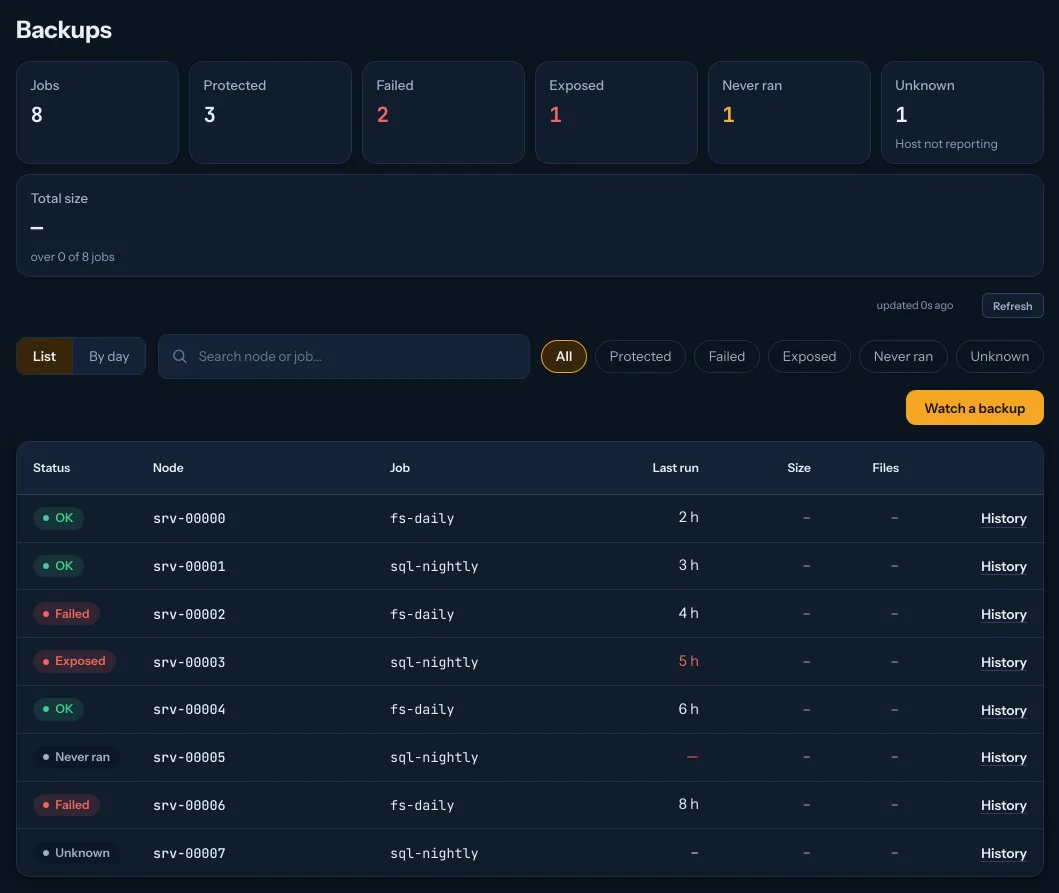
Each customer is a space with its own backups. The list counts protected, failed, exposed, never ran and unknown, and each job keeps its history.
- Next to the machines
- The backup sits next to the server it protects, its disks and its alerts, so a full disk and a failed backup on the same night show up together.
- A day-by-day view
- Switch the list to a view by day to see which nights each job ran.
What it does not check
Said before you ask.
- A test restore
- It checks that the newest copy exists, is recent and opens; it does not restore it.
- Inside backup software
- It does not read the job database of Veeam or other tools, only the files they leave.
- Proxmox Backup Server
- It reads the backups each Proxmox node makes, not the backup server's own datastores and jobs.
- Off-site copies
- It watches folders the agent can reach on the machine or its network shares, not cloud storage buckets.
Frequently asked questions
Does Sergward run the backups?
No. It watches the backups your tools already make. For some types the setup wizard can write a backup script, but you save and schedule it on the host.
How does it know a backup is corrupt?
The agent opens the newest copy and reads up to 8 MiB of it. If it cannot, the copy is flagged as corrupt or truncated. What it reads is discarded and never leaves the machine.
Does it work with Veeam?
It watches the folder where Veeam writes its backup files, like any other folder: the newest file's age and whether it opens. It does not read Veeam's own job results.
When is a backup too old?
When the newest copy is older than the backup limit, 26 hours by default. The wizard sets it from how often the job runs, and it can be changed per tag or per machine.
How much does it cost?
Nothing during the beta. After it you pay per monitored machine, not per backup job: up to 10 machines are free; above 10, every machine is paid.
Join the waitlist
While the beta lasts we give access a few at a time, by hand. Leave your details and we will write to you.
- 1You leave your name and email.
- 2We write to give you access.
- 3You install the first agent.